
Deppo
C# · .NET

A .NET IDE that stays fast on large solutions

The C# engine is built on Roslyn, so it understands your code exactly like the compiler. It is tuned for speed and memory, so a solution with a hundred projects stays fast.
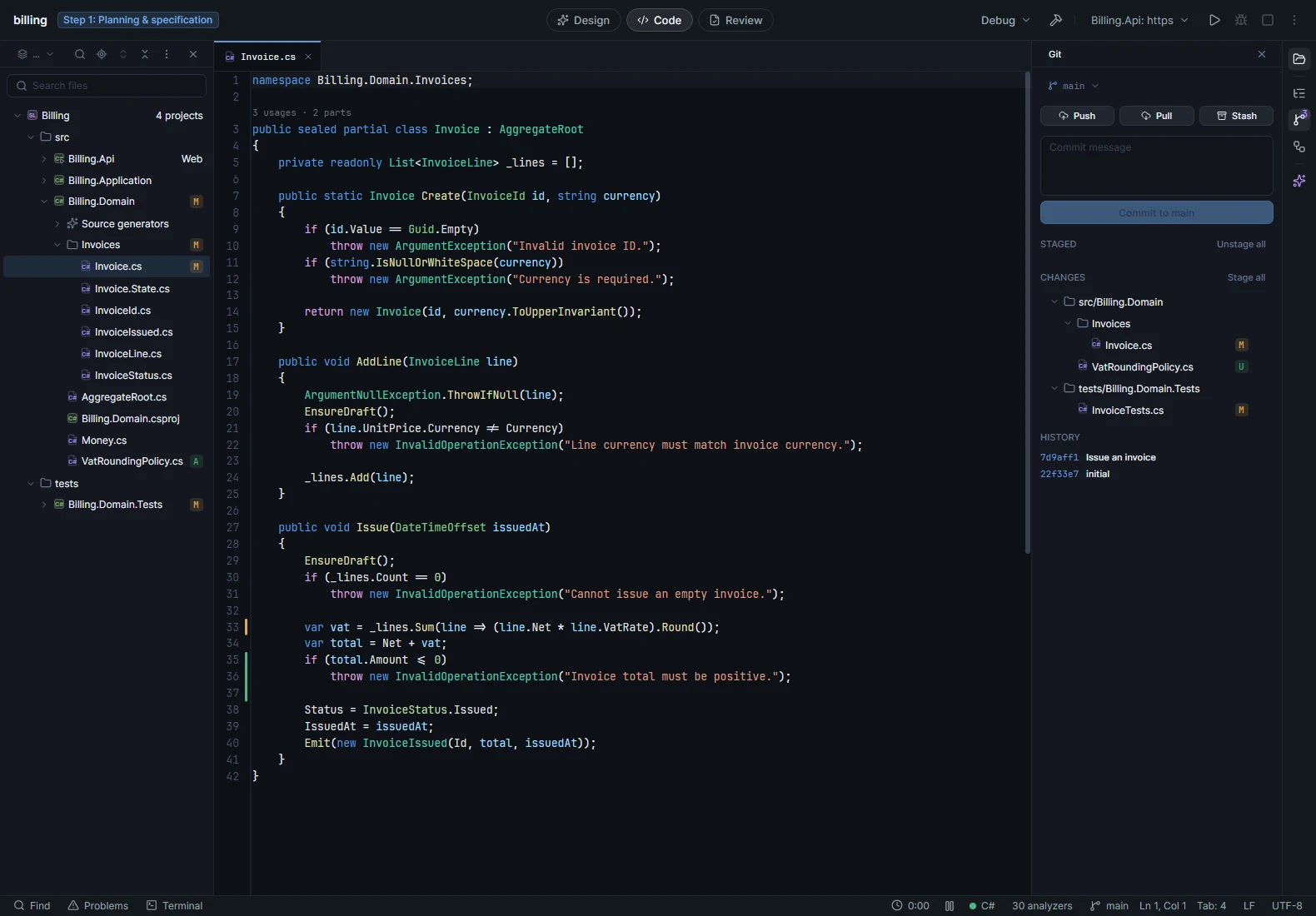
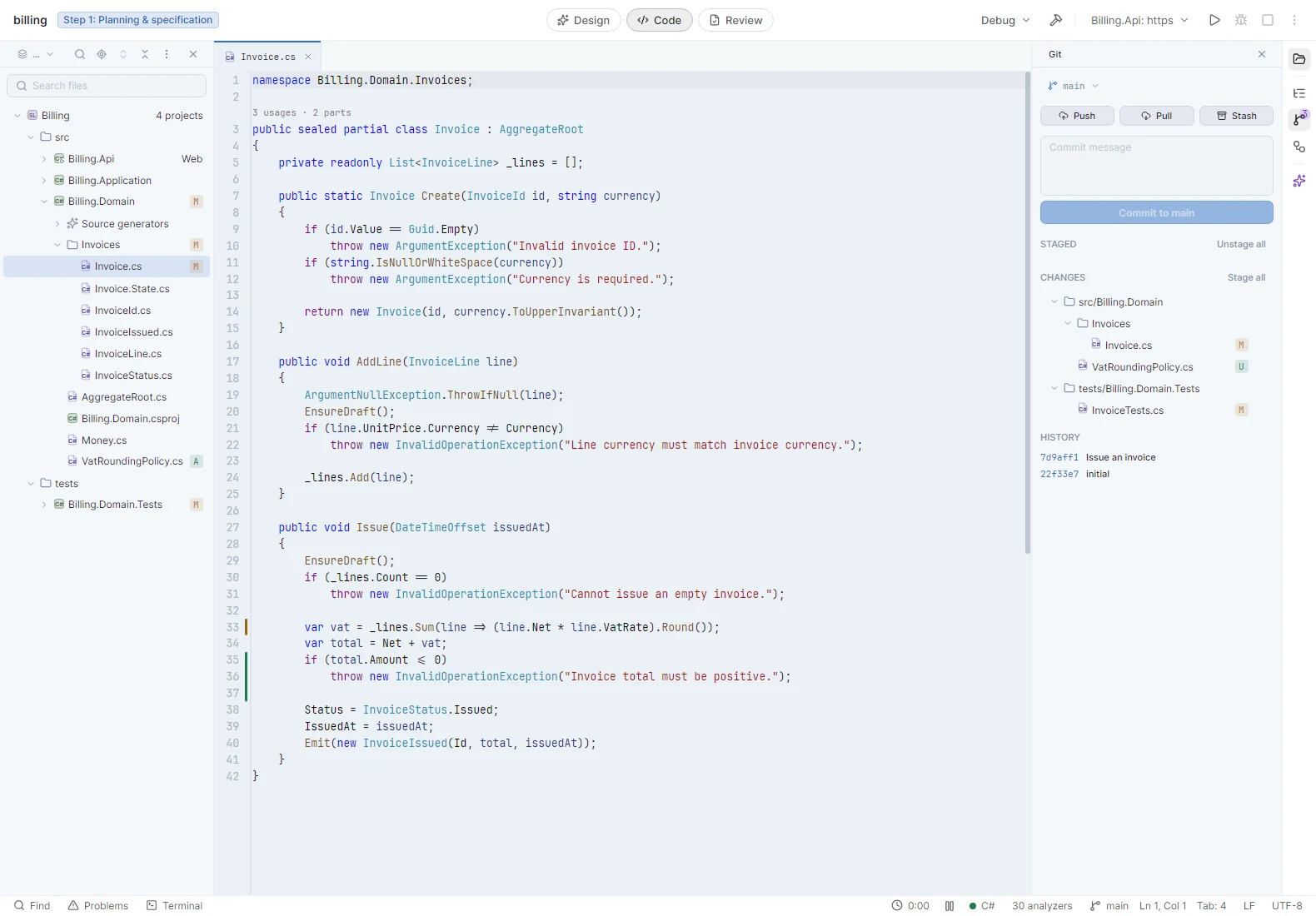
The Code view of Deppo: a .NET solution in the explorer, Invoice.cs with its changes marked and a usage count, and the Git panelThe Code view of Deppo: a .NET solution in the explorer, Invoice.cs with its changes marked and a usage count, and the Git panel

01 / Measured

155 projects, 3,700 files. An answer in 0.8 seconds.

0.8 suntil symbol search works after opening the solution
Roslyn language server: 31 s
400 MBof RAM with the whole solution loaded
Roslyn language server: 1.2 GB
18 msper symbol search
Roslyn language server: 1.1 s
1.2 sfrom an edit to its compiler error
dotnet build: 11 s at least

Opening a solution for the first time

A fresh clone: no cache, including NuGet restore.

Deppo
25 s
Roslyn language server
37 s
dotnet build
104 s

Opening it again

Packages are already restored. Deppo loads from its cache.

Deppo
2.7 s
Roslyn language server
37 s
dotnet build, nothing to build
11 s

First Find usages after opening

From launch to all 104 usages of a type. Most of that time is compiling the solution in the background.

Deppo
30 s
Roslyn language server
42 s

Find usages after that

The same search, run again.

Deppo
0.07 s
Roslyn language server
0.55 s

Deppo’s C# engine against the Roslyn language server 5.12 and dotnet build (.NET SDK 10.0.401), 12 October 2026, on an 8-core laptop with other apps running. Median of three runs.

02 / The IDE

Everything for daily .NET work

Search everywhere

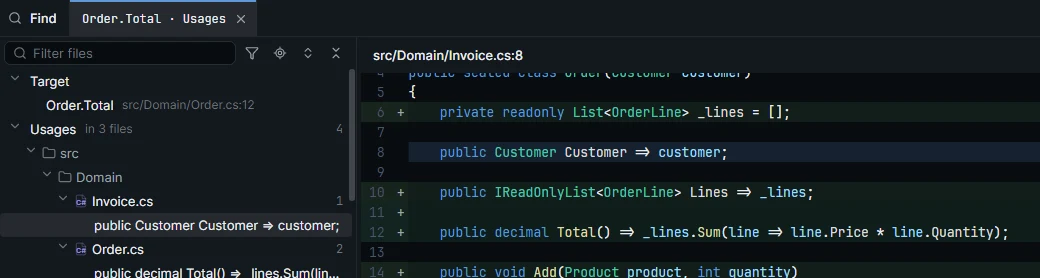
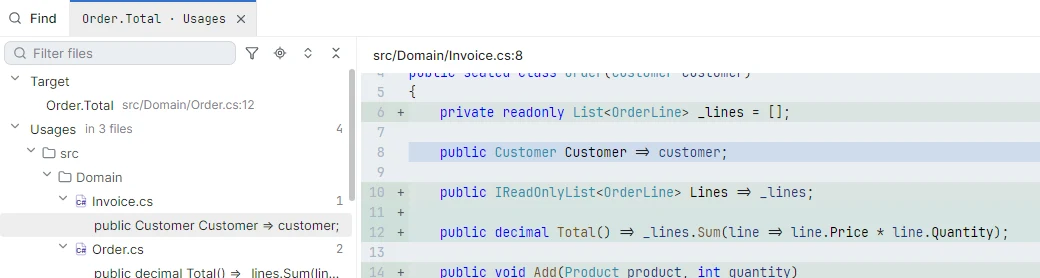
One search box for classes, symbols and files. Find usages streams results as they are found, with a code preview next to the list.
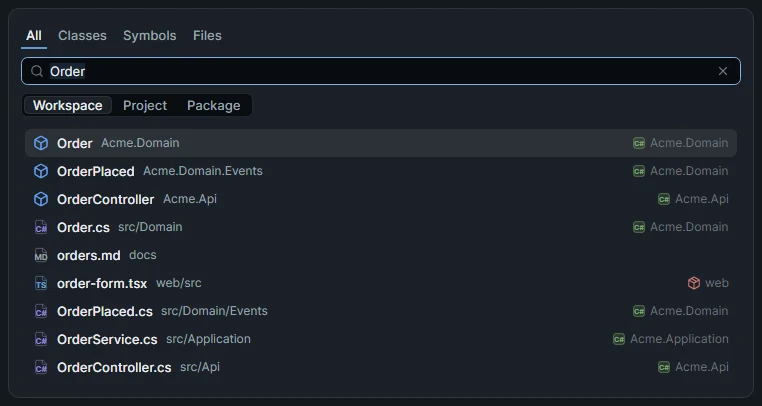
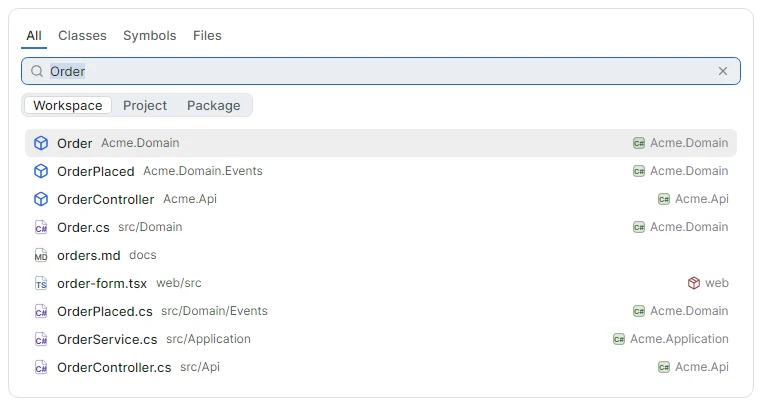
The search window with the tabs All, Classes, Symbols and Files, listing types and files that match Order with the project of eachThe search window with the tabs All, Classes, Symbols and Files, listing types and files that match Order with the project of each
Find usages: the places a member is used, grouped by file, with the code of the selected oneFind usages: the places a member is used, grouped by file, with the code of the selected one

Source generators

Generated files show up in the explorer under their project. Open them and navigate into them like any other code.
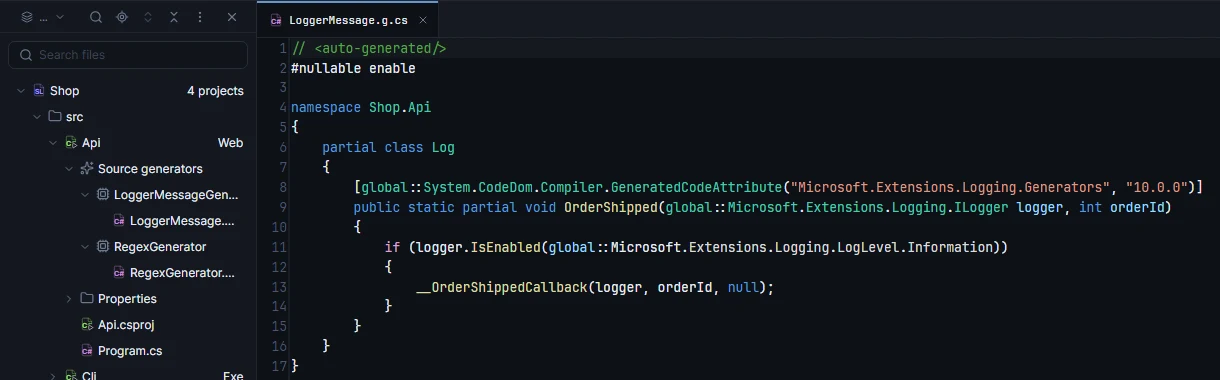
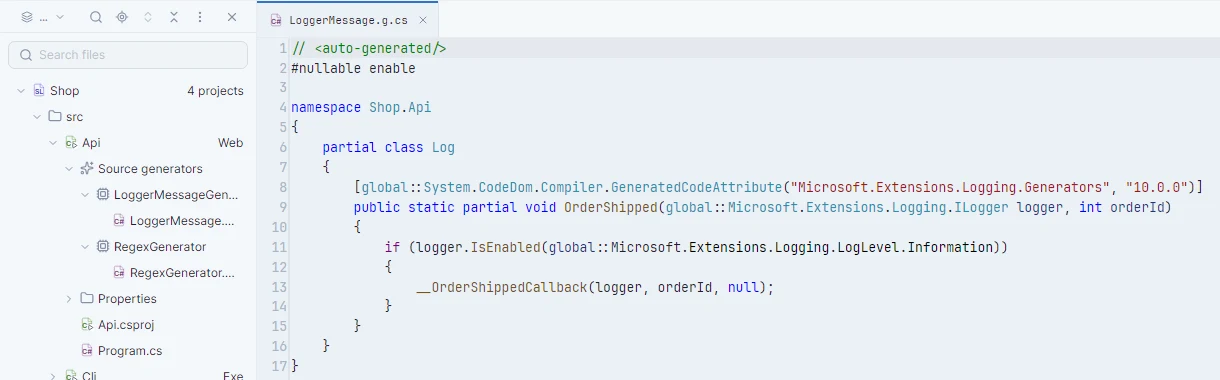
A project in the solution explorer with its Source generators folder open and a generated C# file in the editorA project in the solution explorer with its Source generators folder open and a generated C# file in the editor

Live diagnostics

Compiler errors appear immediately, analyzer warnings right after. Filter by file, project or solution.


The Problems panel: errors, warnings and suggestions of two C# files with their codes and linesThe Problems panel: errors, warnings and suggestions of two C# files with their codes and lines

Build and run

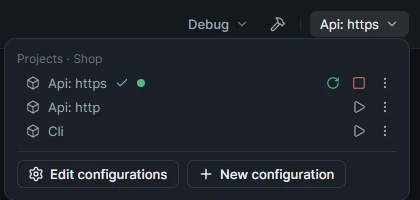
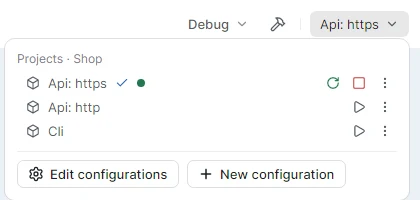
Run configurations are created from your launchSettings.json. Set arguments and environment variables per configuration, and keep them local or share them with the team.
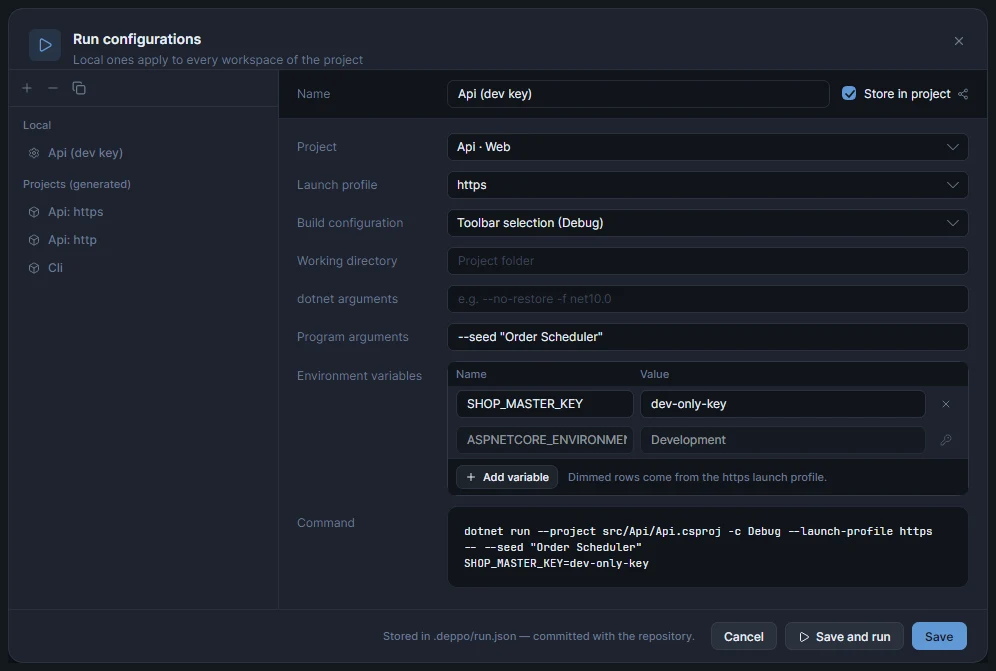
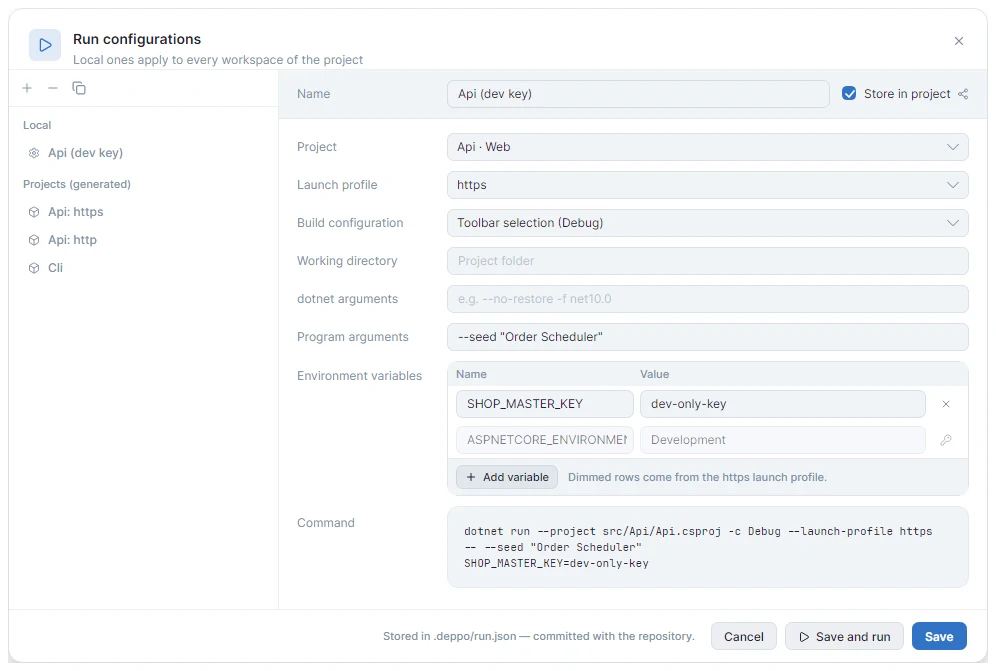
The Run configurations dialog: project, launch profile, arguments, environment variables and the command that will runThe Run configurations dialog: project, launch profile, arguments, environment variables and the command that will run
The run bar of a .NET solution: build configuration, Build, and the run configurations of its projects with one runningThe run bar of a .NET solution: build configuration, Build, and the run configurations of its projects with one running

03 / Specification

Full feature list

code intelligence
Code completion · signature help · go to definition and implementation · find usages · peek definition · rename across the solution · code fixes and refactorings from Roslyn and your analyzer packages · quick documentation · semantic highlighting · code lens
analyzers
Analyzers from NuGet packages and from your own solution · severity levels from .editorconfig · Problems panel per file, project or solution · analyzer timings per file
solutions
.sln and .slnx · several solutions in one repository · search scoped to a solution or a project
build and run
Debug or Release from the toolbar · run configurations from launchSettings.json · multiple runs in parallel · debuggerComing soon
formatting
CSharpier or dotnet format, with format on save · uses the version pinned in your repository
editing
Multiple cursors · column selection · expand selection · auto-closing brackets · git blame · change markers in the gutter with revert
in a pull request
Diffs with full syntax highlighting · go to definition and find usages from any changed line · peek definition next to the diff · generated code included in results